Article Overview
Configuring a Huawei gigabit fiber optic switch involves setting up the management IP, configuring interfaces and VLANs, adjusting port speeds, and securing access.
Step 1 – Connect and Log In
- Connect your PC to the switch using a console cable (Mini USB or serial-to-USB if needed) .
- Power on the switch and access it via a terminal emulator (e.g., PuTTY).
- For first login, use the default credentials: username:
admin, password:[email protected]. - Change the default password immediately for security.
Step 2 – Configure Management IP
- Enter system view:
system-view - Assign a management IP to the switch's management interface (e.g., Ethernet0/0/0):
interface Ethernet0/0/0ip address 10.10.1.1 255.255.255.0 - Set the default gateway if the switch needs Internet access:
ip route-static 0.0.0.0 0.0.0.0 10.10.1.254
Step 3 – Configure User Accounts and Access
- Create a local user for Telnet or SSH access:
local-user admin password irreversible-cipher YourStrongPasswordlocal-user admin privilege level 15local-user admin service-type telnet - Enable SSH for secure remote management if supported.
Step 4 – Configure Interfaces and VLANs
- Enter interface view for a gigabit fiber port (e.g., GE0/0/1):
interface GigabitEthernet0/0/1 - Set the port mode (access or trunk) and assign VLANs:
port link-type accessport default vlan 10 - For trunk ports:
port link-type trunkport trunk allow-pass vlan 10 20 30 - Enable auto-negotiation for fiber interfaces if needed:
negotiation auto - Adjust port speed if required (default 1 Gbit/s, can be licensed for higher rates):
assign port-type xge
Step 5 – Verify Connectivity
- Check interface status:
display interface GigabitEthernet0/0/1 - Test VLAN and network connectivity using ping commands.
- Optionally, check cable quality for MultiGE interfaces:
cable-snr-test.
Step 6 – Save Configuration
- Save the configuration to prevent loss after reboot:
save
Additional Tips
- Use
display versionto confirm firmware version before configuration . - For advanced features like unidirectional isolation or port aggregation, refer to Huawei's Ethernet interface commands .
- Video tutorials provide visual guidance for step-by-step configuration . By following these steps, your Huawei gigabit fiber optic switch will be configured for management, VLAN segmentation, and network connectivity, ready for deployment in your network.
Example for Configuring a Combo Interface
This configuration ensures that the combo interface''s working mode does not change when the transmission medium
Network Switches | Huawei Enterprise
Huawei Ethernet Switches Turbocharge your enterprise network with high-performance, high-availability for
Ethernet Interface Configuration Commands
This document describes all the configuration commands of the device, including the command function, syntax, parameters, views,
Huawei Switch Basic Configuration: Step-by-Step Guide for Beginners
Are you new to configuring Huawei switches and looking for a step-by-step guide? Look
S1700 Series Switches
Huawei S1700 series enterprise switches provide energy-saving Fast Ethernet access for small businesses
Huawei Switch User Manuals Download | ManualsLib
User manuals, Huawei Switch Operating guides and Service manuals.
Huawei Switch Configuration | Complete Setup Guide
In this video, we''ll guide you through the process of configuring a Huawei Switch for your network. Whether you''re
Installing Optical Modules and Connecting Optical Fibers
Installing Optical Modules and Connecting Optical Fibers Context Do not look into bores of optical modules or connectors of optical
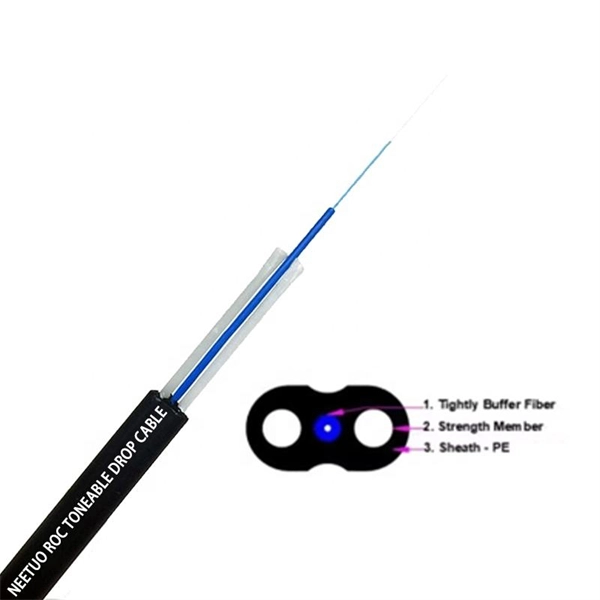
How Do I Select Optical Modules and Fibers?
An optical module works in full-duplex mode with a pair of optical fibers, one for transmission and one for receiving, as shown in the
Huawei Switch Configuration Tutorial Basic
With hands-on experience in Huawei OLT and ONT configuration, U2000 NMS deployment, iMaster NCE-FAN Lite
Huawei Switch Configuration Guide
The document provides configuration instructions and commands for basic switch configuration using Huawei switches. It covers
S6320-SI Series Multi-Gigabit Switches
S6320-SI Series Multi-Gigabit Switches Huawei S6320-SI series switches are Huawei-developed next-generation multigigabit 10GE
CloudEngine S5755-H Series High-Quality Multi-GE Switches | Huawei
CloudEngine S5755-H series high-quality multi-rate switches are Huawei''s next-generation high-end access switches designed for
CloudEngine S5755-H Series | Huawei Enterprise
Huawei CloudEngine S5755-H series switches are high-quality gigabit access switches that can be widely used in many industries.
S1720, S2700, S5700, and S6720 V200R011C10 Configuration Guide
S1720, S2700, S5700, and S6720 V200R011C10 Configuration Guide - Ethernet Switching This document describes the

Huawei Switch Configuration Guide
The document provides detailed steps and examples for completing common switch configuration tasks.
Configuring Unidirectional Single-Fiber Communication
Learn how to configure unidirectional single-fiber communication with Huawei''s technical support guide.
Configuring Fibre Channel Switches (Applicable to Fibre Channel
Fibre Channel switch configuration includes setting domain IDs, configuring the long-distance mode for links, and creating zones.
Huawei S Series Quick Configuration
View and Download Huawei S Series quick configuration online. Campus Switches. S Series switch pdf manual download. Also for:
Quick Configuration Guide
This guide offers quick configuration instructions for Huawei enterprise products, ensuring efficient setup and optimal performance.
HUAWEI NIP6300, NIP6600 Series V500 Hardware Guide (pdf)
The optical fiber is used for carrying signals on Gigabit networks or networks with a higher packet rate. The optical fiber connects to
Typical Ethernet Switching Configuration
S300, S500, S2700, S3700, S5700, S6700, S7700, and S9700 Series Switches Typical Configuration Examples (V200) This
Huawei switch configuration step by step
How to configure the Huawei Switch configurationLearn the configure Huawei switch
How to do Starting Configuration of Huawei Ethernet Switch S5735
In this video, we configure huawei network switch s5735 and S5700 series. first, go
Huawei S5330-HI Series Switches Product Brochure
Huawei S5330-HI Series Switches Product Huawei S5330-HI gigabit ethernet switches are Huawei-developed next-generation agile
S Series Campus Switches Quick Configuration (V200)
This document describes how to log in Huawei S series switches for the first time and fast configure the switches, and
OLT-and-Switch-Config-Troubleshooting/GPON/README.md at main
📘 Overview GPON (Gigabit Passive Optical Network) is an advanced fiber-optic communication technology defined by the ITU-T
CloudEngine S5736-S Series Switches | Huawei
CloudEngine S5736-S series switches are all-optical switches that feature 48 downlink optical ports and
S7700 V200R023C00 CONFIGURATION GUIDE
This document is intended for network engineers responsible for switch configuration and management. You should be familiar with
Initial Configuration of New Huawei OLT
To have a clearer understanding of how the OLT connection is structured when performing the configuration, you can refer to the
Stack Configuration
Stack Configuration This chapter describes how to set up a stack of multiple switches to improve forwarding performance and reliability.
Ethernet Interface Configuration Commands
S1720, S2700, S5700, and S6720 V200R011C10 Command Reference This document describes all the configuration commands of
Huawei Switch Basic Configuration Step by Step
👉 In this video, I will show you step by step on how to configure Huawei switch using an
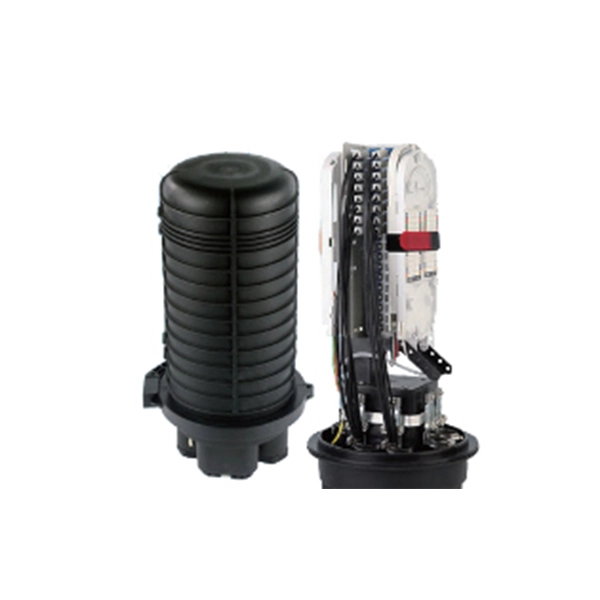
Installing Stack Cables and Powering On the Switch
Installing Stack Cables and Powering On the Switch Preparing for Installation Ensure that the following components and tools are
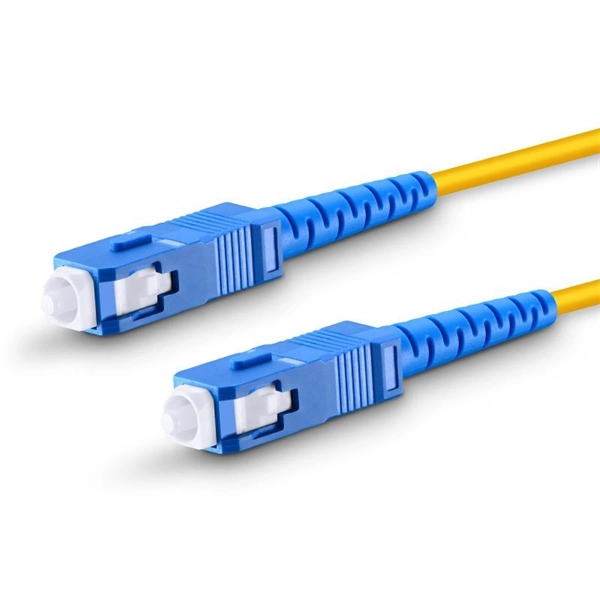
How To Switch Optical/Electrical Mode On Huawei Router Combo Ports
The Combo electrical port and its corresponding optical port are logically multiplexed. Users can choose either port
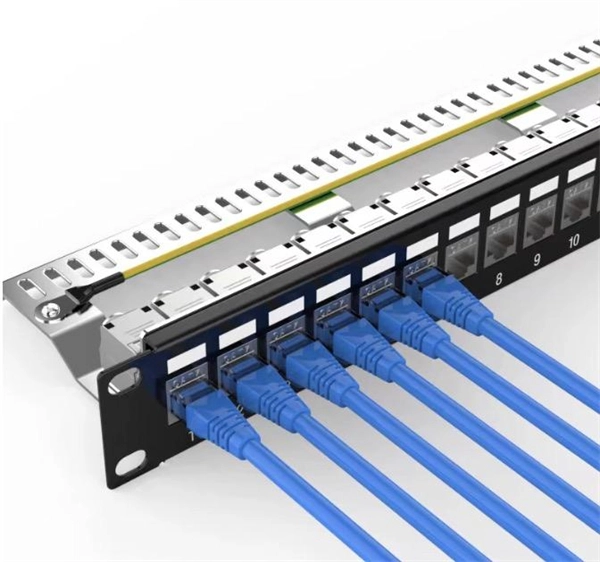
Installing Optical Modules and Connecting Optical Fibers
Huawei shall not bear any responsibility for translation accuracy and it is recommended that you refer to the English document (a link
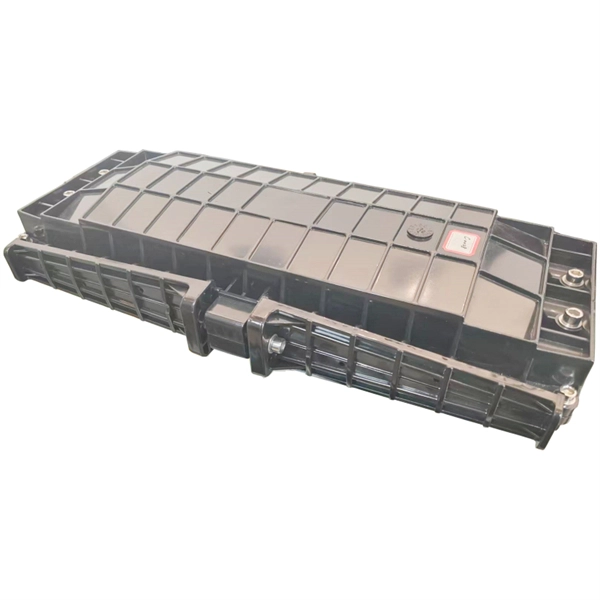
Configuring Attributes for an Optical Interface
After configuring interface split or merge on an interface, you need to save the configuration and restart the switch to make the
Related Resources
- Standard Color for Exterior Wall of Distribution Box
- How to connect a router with fiber optic cables network cables
- Analysis of the Advantages and Disadvantages of Multimode Optical Cables Chart
- Imported Smart Building Fiber Optic Cable Production Line Manufacturer
- Cost-effectiveness of cable tray installation in Guyana
- Sri Lanka Optical Cable Sales Department